Managing the Structural Agent and Agent chat conversations
How chat conversations are stored
Tonic Structural stores chat conversations in browser storage.
Using the AI Agent tab
The AI Agent tab provides a full-page view of the Structural Agent chat.

Using the AI Agent chat panel
In addition to the AI Agent tab, you can use the AI Agent chat panel, which allows you to interact with the Structural Agent while you view Structural pages.
Available display types
The chat panel supports the following display options.
Side-by-side
With the Side-by-side option, the agent chat panel displays next to the Structural page.
To accommodate the chat panel, the Structural page becomes narrower.
You can display the chat panel on the left or right side of the screen.

Overlay
With the Overlay option, the agent chat panel displays on top of the Structural page.
You can display the chat panel on the left or right side of the screen.

Selecting the chat panel display type
From the chat panel, to select the display type:
Click the chat panel options menu.
In the menu, click the display type.

To also select the Agent chat panel location, click the location option under the display type.
For example, if you select the Move to right side option under Side-by-side, then the chat panel both changes to the side-by-side view and displays at the right.
If you don't select a specific location, then the chat panel uses the most recently selected location.
Selecting the chat panel display location
To change the display location:
Click the chat panel options menu.
For the selected display option:
To move the chat panel to the left, click Move to left side.
To move the chat panel to the right, click Move to right side.
Hiding and displaying the chat panel
To hide the chat panel, either:
Click the hide icon at the top right.
In the options menu, click Hide.
To display the chat panel, click the chat panel icon. The icon displays at the bottom right of each Structural page.

Adjusting the chat panel width
To adjust the chat panel width, click and drag the panel border.
Identifying the chat context
The Structural Agent chat remains in place across the entire Structural application.
You can read information about data from any workspace that you have access to. For example, you can get a summary list of workspaces organized by data connector, identify unprotected columns in any workspace, or find the workspace with the most recent failed job.
However, you can only perform configuration or generation actions based on the current context. For example, you can only change the configuration for a workspace if you are currently in the workspace management view for that workspace. The Structural Agent can navigate to the workspace that you want to work with.
As you navigate to different workspaces or to views outside of a workspace, the Structural Agent chat notes the change in context, and provides links to allow you to navigate to each context.

Starting and managing chat conversations
You can create multiple conversations within the Structural Agent chat. For example, you might start a new conversation when you change to a different workspace.
Starting a new conversation
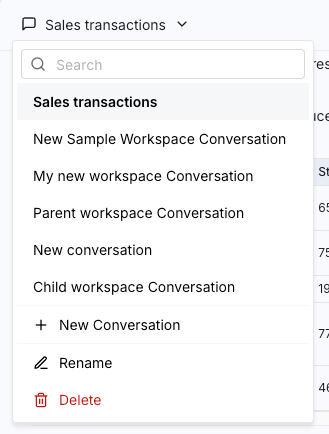
From the Structural Agent chat, to start a new conversation, click the conversation dropdown, then select New Conversation.

Renaming the current conversation
Structural automatically assigns a name to each new conversation, based on the current context.
To assign a new name to the current conversation:
Click the conversation dropdown, then click Rename.
In the name field, provide the new name.
Click Save.
Switching to a different conversation
To change to a different conversation, from the conversation dropdown, select the conversation to change to.
Deleting the current conversation
To delete the current conversation:
Click the conversation dropdown, then click Delete.
On the confirmation panel, click Delete.
Structural deletes the current conversation and switches you to the first available conversation.
When you delete a conversation, Structural also removes it from the browser storage.
Stopping an action
While the Agent is working, to stop the response and cancel the action, in the chat prompt, click the stop response icon.

Undoing and redoing an action
Before it performs an action to modify the workspace, the Agent takes snapshots of the current workspace configuration.
To undo an action, or to revert to a previous point from the current conversation, prompt the Agent.
For example:
Undo that action.Revert the generator assignments for the datetime columns.Go back to before we assigned generators to the name columns.
If needed, the Agent can ask you to select a snapshot to revert to.
To redo an action, cick the redo icon.

Copying the most recent response from the Agent
A response from the Agent might be useful elsewhere. For example, you can prompt the Agent to generate Structural API calls, or the Agent might return a useful summary of the data and its status.
To copy the most recent Agent response, click the copy icon.

Providing feedback to the Agent
You can provide basic positive or negative feedback to indicate the helpfulness of a response. The Agent then uses that feedback to adjust its future responses in the current chat.
To provide positive feedback, click the thumbs up icon.
To provide negative feedback, click the thumbs down icon.
Last updated
Was this helpful?