# Exporting data from a Data Agent database
You cannot export data from a database connection. You can only export data that is generated in Fabricate.
## Supported export formats
When you are ready to use the data, you can export the Data Agent database to one of several formats.
Each download is in the form of a .zip file, and includes a readme file that contains a summary of the export.
The following formats are available to all users:
* **CSV -** Produces a .csv file for each table.
* **JSON array -** Produces a JSON array for each table.
* **JSONL -** Produces a .jsonl file for each table.
* **MySQL -** Produces a .sql file to create and populate the database.
* **PostgreSQL -** Produces a .sql file to create and populate the database.
* **SQLLite -** Produces a .db file that contains the database.
These formats require an Enterprise license:
* **Avro -** Produces an .avro file for each table.
* **Databricks -** Produces a .sql file to create and populate the database.
* **Iceberg -** Produces a folder structure that contains the data and metadata.
* **Microsoft SQL Server -** Produces a .sql file to create and populate the database.
* **MongoDB -** Produces a .bson file for each table, and a **load.sh** file.
* **Oracle -** Produces a .sql file to create and populate the database.
* **Parquet -** Produces a .parquet file for each table.
* **XML -** Produces a folder for each table. Within each table, produces an .xml file for each record.
## Supported export targets
When you choose to export data to a specific format, Fabricate automatically creates and downloads the files.
You can also choose to push the data to a specific external database. You set up target databases for export. Each target database consists of:
* A server connection.
* The name of the database.
Finally, you can prompt the Data Agent to send exported data to an S3 bucket. Before you can write to an S3 bucket, you must:
* [Add the S3 bucket to the account domains.](https://docs.tonic.ai/fabricate/fabricate-accounts-and-users/account-domains)
* [Add the AWS key and secret key to the workspace secrets.](https://docs.tonic.ai/fabricate/workspaces/workspace-secrets)
## Exporting the full database
To export the full Data Agent database:
1. In the database heading, click **Export**.
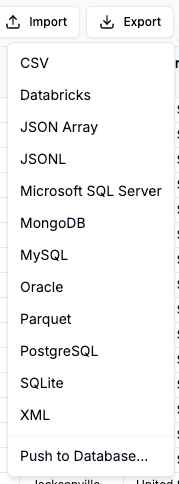
2. In the **Export** menu, select the format to use.
Export format options for a Data Agent database
For options other than **Push to database**, Fabricate immediately creates and downloads the files.
## Pushing data to a database
When you push to a database, you select or define an export target. Each export target consists of:
* A server connection.
* A database.
Your external database must allow connections from the following Fabricate IP addresses:
* US instance ()
* 184.72.239.148
* 3.231.122.192
* EU instance ()
* 3.67.149.135
* 3.69.97.191
### Selecting or creating the export target
When you select the **Push to database** option, Fabricate prompts you to select an export target. The dropdown list includes an option to define a new export target.
Push to database panel when an export target is available
If there are no export targets for the database, then Fabricate prompts you to define a new export target.
Push to Database panel when no export targets are defined
### Defining an export target
For a new export target:
1. In the **Connection Name** field, provide a name to use for the export target.
2. From the **Server Connection** dropdown list, select the server connection where the target database is located.\
\
You can if needed add a new server connection or edit the selected server connection.\
\
New server connections are added to the [available server connections for the workspace](https://docs.tonic.ai/fabricate/workspaces/workspace-server-connections).\
\
Note that any edits to the selected server connection apply to all of the locations where the server connection is used.
3. Specify the database to connect to.\
\
For platforms other than Databricks, in the **Database Name** field, provide the name of the database to export to.\
\
For Databricks:
1. In the **Catalog** field, provide the data catalog for the data.
2. In the **Schema** field, provide the schema for the data.
4. To verify that Fabricate can connect to the database, click **Test Connection**.
5. To create the export target, click **Create Connection**.
### Starting the export
After you select the export target, to start the export, click **Start**.
## Prompting the Data Agent to export data
You can also prompt the Data Agent to export the data. For example: `Export the database to CSV files.`
### Customizing the export
With the Data Agent chat, you can customize the exported data. You might want to export only a subset of the database, or a specific table.
For example: `Download to CSV files all of the records associated with the top 5 orders by value.`
In addition to the format options in the **Export** menu, you can specify any type of text file, such as EDI, HL7, or YAML. You can also export data to .xslx files.
### Exporting to Amazon S3
If you configured an Amazon S3 domain and secrets, then you can also tell the Agent to write the data to a folder in that S3 bucket.
For example: `Write all of the records associated with the top 5 orders by value to CSV files in the output folder in the mybucket S3 bucket.`
The Data Agent verifies that the domain and secrets are configured and that it can connect to the S3 bucket.