# Viewing, querying, and editing the data
Fabricate provides multiple views for a Data Agent database. You can also run queries against the data and make direct updates to values in data cells.
## Available views of a Data Agent database
For a Data Agent database, you can choose from the following types of views:
* **Table view -** The default view. Displays the data for the current table in a table.
* **JSON view -** Displays the data for the current table as a set of JSON documents. Each row is a separate document.
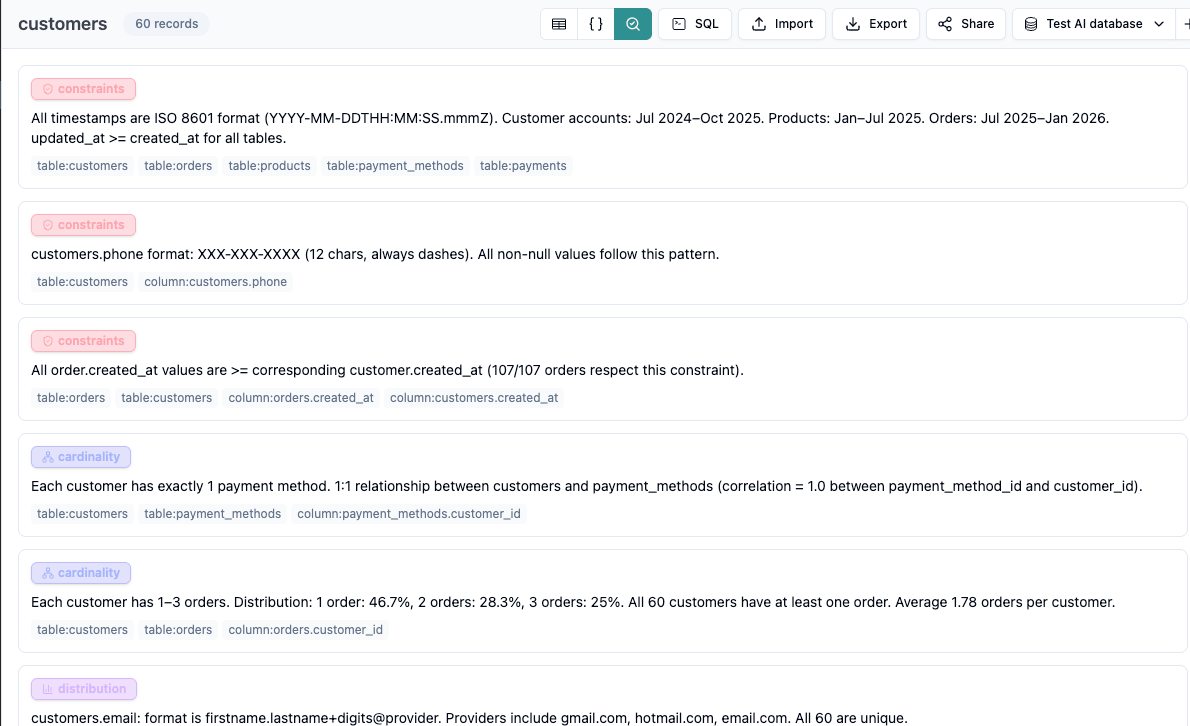
* **Findings view -** Provides an analysis of the table structure and data. Findings view is populated when the Data Agent [profiles the database](https://docs.tonic.ai/fabricate/data-agent-databases/data-agent-profile).
Table view is the default.
Table view icon
To switch to JSON view, click the JSON view icon.
JSON view for a Data Agent database
To switch to Findings view, click the magnifying glass icon.
Findings view for a Data Agent database
## Asking the Data Agent about the data
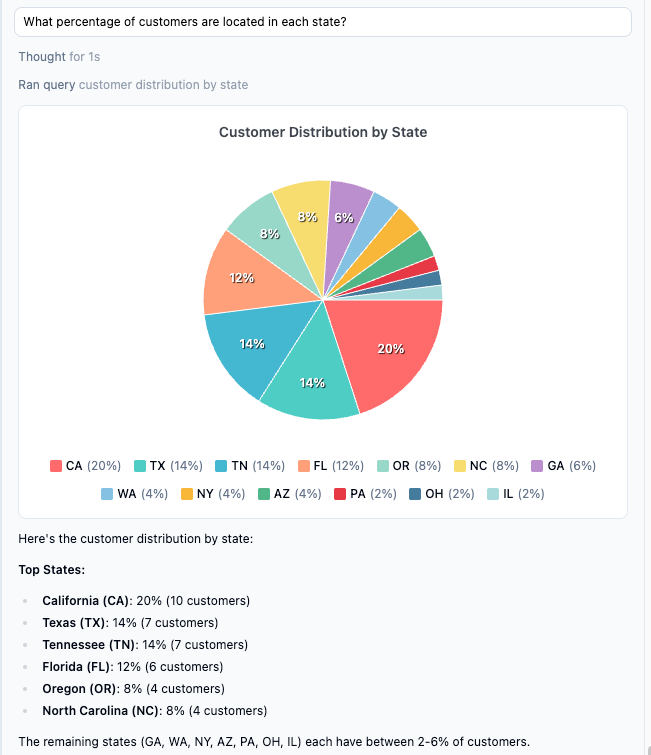
In addition to using the Data Agent to create and make changes to the data, you can also request information about the data.
For example, you might ask something like:
* `How many customers have more than 2 items in an order?`
* `How many customers are from each state?`
If applicable, the Data Agent generates a pie chart or bar chart to illustrate the results. You can also prompt the Data Agent to generate a specific type of chart.
## Running SQL queries against the data
You can run SQL queries against a Data Agent database to:
* Retrieve information about the data
* Retrieve a subset of the data
* Add records to the data
* Update records in the data
* Remove records from the data
To run a SQL query against the database:
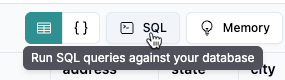
1. Click **SQL**.
SQL option to run a SQL query against the data
2. On the **SQL Editor** panel, in the SQL field, provide the SQL query.\
\
The SQL can include `SELECT`, `INSERT`, `UPDATE`, and `DELETE`.
3. Click **Execute Query**.
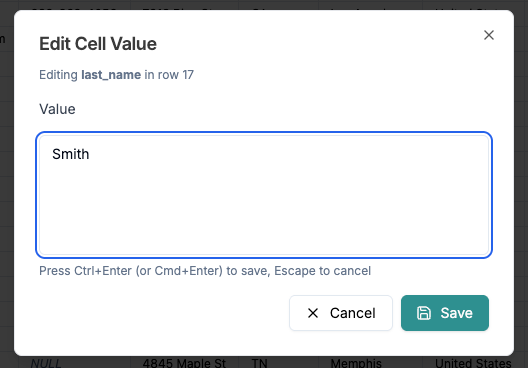
## Editing individual cells
In a Data Agent database, to get the exact value that you want, you can manually edit the values in individual cells.
You cannot edit individual cells in a live connection database.
To edit an individual cell value:
1. Click the cell value.