For the complete documentation index, see llms.txt. This page is also available as Markdown.

Creating and managing mock API endpoints

About mock APIs

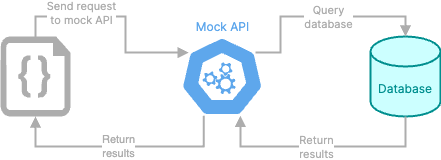
Some products or features cannot interact directly with a database. Instead, they interact with an API that in turn interacts with the database. So to test a database that you plan to use for this type of product or feature, you need an API.

To support this type of testing, you can add mock API endpoints to the project.

Diagram that shows interaction with a mock API

You can then call those endpoints directly from within Fabricate, to verify that the results from the database meet your expectations.

Adding and editing mock API endpoints

To create mock API endpoints, either:

  • Attach a Swagger file that contains the details for the API, and prompt the Data Agent to create the mock API endpoints. For example:

    • Use the attached file to create a mock API and generate the required data.

    • Use the attached file to add a mock API to this project.

Example prompt and file to create a mock API for a Data Agent database
  • Prompt the Data Agent to add a mock API endpoint. For example:

    • Create a Get /Users endpoint that retrieves the list of users from the Users table.

Viewing the mock API endpoints

To display the mock API endpoints for the project, in the navigation panel, under API, click Endpoints. The Endpoints link displays the number of API endpoints.

API menu with the Endpoints link with the number of mock API endpoints

The Endpoints view of the API page displays:

  • The base URL for requests to the API. To copy the URL, click its copy icon.

  • The authentication header for requests to the API.

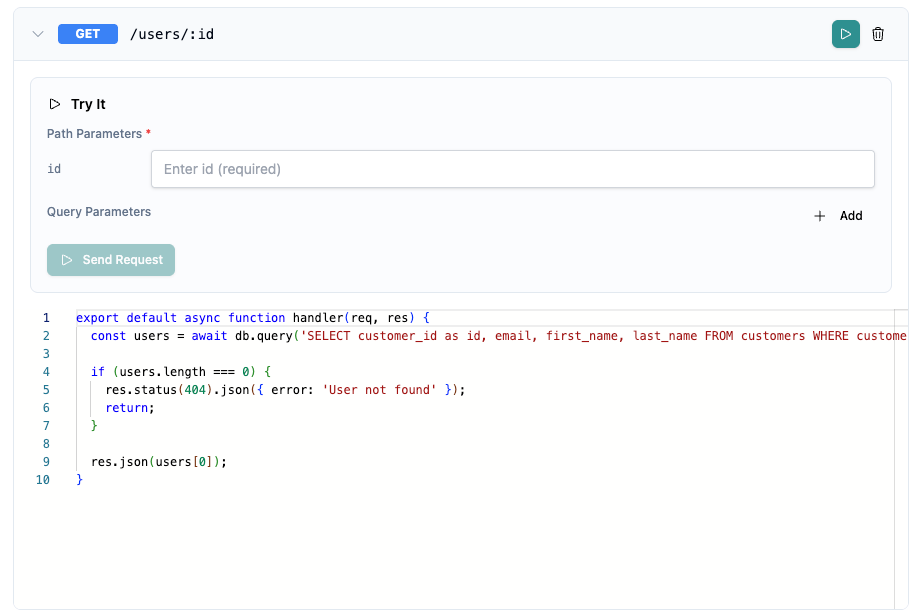
  • The available endpoints. To display the associated code for an endpoint, click its expand icon.

API page with the endpoints for the mock API

Selecting the model to use for freeform text generation

You can select the model that the mock API uses to generate any freeform text.

To change the selected freeform text model:

  1. On the API page, click the settings icon.

  2. On the API Settings panel, click the category of model to use. Fabricate maps each category to a specific model.

    • Economy - Lowest quality and cost. Medium speed.

    • Fast - This is the default and recommended option. This is the fastest option, with high quality and medium cost.

    • Standard - Provides higher quality at a higher cost, but with slower speed.

    • Premium - Provides the highest quality and the highest cost, but is very slow.

API Settings panel with the freeform text model category selection

  1. Click Done.

Testing a mock API endpoint

To test a mock API endpoint, click the run icon.

Test option for a mock API endpoint

Fabricate prompts you for any parameter values or the request body details.

Details for testing a mock API endpoint
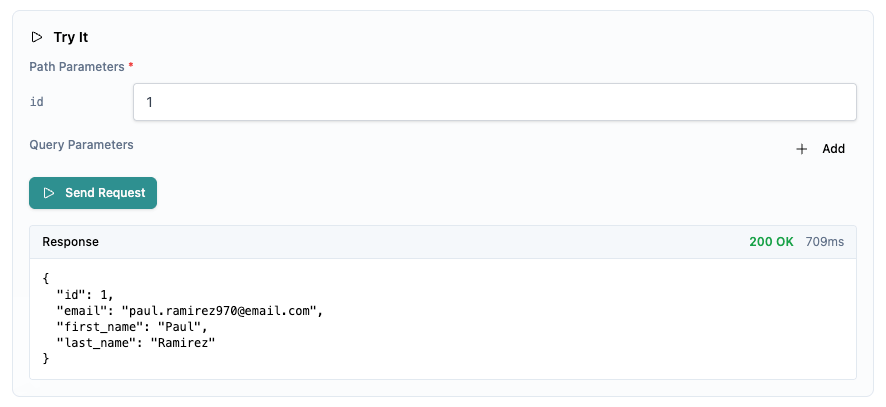
After you provide the required information, click Send Request. Fabricate populates the request response.

Response from a mock API endpoint test

Viewing the OpenAPI specification for the mock API

Fabricate also generates an OpenAPI specification for the mock API. To view the OpenAPI specification, on the API page, click OpenAPI Spec.

OpenAPI spec for a mock API

On the OpenAPI Spec panel:

  • To copy the spec content to the clipboard, click Copy.

  • To download the spec, click Download.

Deleting mock API endpoints

To delete a mock API endpoint, click its delete icon.

You can also use the chat to delete either individual endpoints or the entire mock API. For example:

Delete the POST /Users endpoint from the mock API.

Delete the entire mock API for this project.

Last updated

Was this helpful?