# Exporting data from a local database

You cannot export data from a database connection. You can only export data that is generated in Fabricate.

## Supported export formats

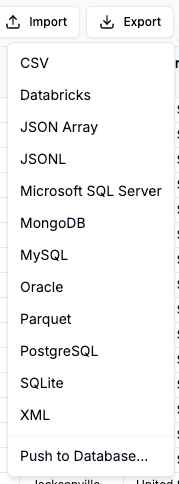
When you are ready to use the data, you can export the database to one of several formats.

Each download is in the form of a .zip file, and includes a readme file that contains a summary of the export.

The following formats are available to all users:

* **CSV -** Produces a .csv file for each table.
* **JSON array -** Produces a JSON array for each table.
* **JSONL -** Produces a .jsonl file for each table.
* **MySQL -** Produces a .sql file to create and populate the database.
* **PostgreSQL -** Produces a .sql file to create and populate the database.
* **SQLLite -** Produces a .db file that contains the database.

These formats require an Enterprise license:

* **Avro -** Produces an .avro file for each table.
* **Databricks -** Produces a .sql file to create and populate the database.
* **Iceberg -** Produces a folder structure that contains the data and metadata.
* **Microsoft SQL Server -** Produces a .sql file to create and populate the database.
* **MongoDB -** Produces a .bson file for each table, and a **load.sh** file.
* **Oracle -** Produces a .sql file to create and populate the database.
* **Parquet -** Produces a .parquet file for each table.
* **XML -** Produces a folder for each table. Within each table, produces an .xml file for each record.

## Supported export targets

When you choose to export data to a specific format, Fabricate automatically creates and downloads the files.

You can also choose to push the data to a specific external database. You set up target databases for export. Each target database consists of:

* A server connection.
* The name of the database.

Finally, you can prompt the Data Agent to send exported data to an S3 bucket. Before you can write to an S3 bucket, you must:

* [Add the S3 bucket to the account domains.](/fabricate/fabricate-accounts-and-users/account-domains.md)
* [Add the AWS key and secret key to the workspace secrets.](/fabricate/workspaces/workspace-secrets.md)

## Exporting the full database

To export the full Data Agent database:

1. In the database heading, click **Export**.
2. In the **Export** menu, select the format to use.

<figure><img src="/files/DBSJa4yXPfFa8FQZs9Q5" alt=""><figcaption><p>Export format options for a Data Agent database</p></figcaption></figure>

For options other than **Push to database**, Fabricate immediately creates and downloads the files.

## Pushing data to a database

When you push to a database, you select or define an export target. Each export target consists of:

* A server connection.
* A database.

Your external database must allow connections from the following Fabricate IP addresses:

* US instance (<https://fabricate.tonic.ai/>)
  * 184.72.239.148
  * 3.231.122.192
* EU instance (<http://eu.fabricate.tonic.ai/>)
  * 3.67.149.135
  * 3.69.97.191

### Selecting or creating the export target

When you select the **Push to database** option, Fabricate prompts you to select an export target. The dropdown list includes an option to define a new export target.

<figure><img src="/files/46GXGo82bND3mXmRqQ8d" alt=""><figcaption><p>Push to database panel when an export target is available</p></figcaption></figure>

If there are no export targets for the database, then Fabricate prompts you to define a new export target.

<figure><img src="/files/pxQggBSppdGaoFAuKDNP" alt=""><figcaption><p>Push to Database panel when no export targets are defined</p></figcaption></figure>

### Defining an export target

For a new export target:

<figure><img src="/files/nQIdPBiexbezOvL5zWXh" alt=""><figcaption></figcaption></figure>

1. In the **Connection Name** field, provide a name to use for the export target.
2. From the **Server Connection** dropdown list, select the server connection where the target database is located.\
   \
   You can if needed add a new server connection or edit the selected server connection.\
   \
   New server connections are added to the [available server connections for the workspace](/fabricate/workspaces/workspace-server-connections.md).\
   \
   Note that any edits to the selected server connection apply to all of the locations where the server connection is used.
3. Specify the database to connect to.\
   \
   For platforms other than Databricks, in the **Database Name** field, provide the name of the database to export to.\
   \
   For Databricks:
   1. In the **Catalog** field, provide the data catalog for the data.
   2. In the **Schema** field, provide the schema for the data.
4. To verify that Fabricate can connect to the database, click **Test Connection**.
5. To create the export target, click **Create Connection**.

### Starting the export

After you select the export target, to start the export, click **Start**.

## Prompting the Data Agent to export data

You can also prompt the Data Agent to export the data. For example: `Export the database to CSV files.`

### Customizing the export

With the Data Agent chat, you can customize the exported data. You might want to export only a subset of the database, or a specific table.

For example: `Download to CSV files all of the records associated with the top 5 orders by value.`

In addition to the format options in the **Export** menu, you can specify any type of text file, such as EDI, HL7, or YAML. You can also export data to .xslx files.

### Exporting to Amazon S3

If you configured an Amazon S3 domain and secrets, then you can also tell the Agent to write the data to a folder in that S3 bucket.

For example: `Write all of the records associated with the top 5 orders by value to CSV files in the output folder in the mybucket S3 bucket.`

The Data Agent verifies that the domain and secrets are configured and that it can connect to the S3 bucket.


---

# Agent Instructions: Querying This Documentation

If you need additional information that is not directly available in this page, you can query the documentation dynamically by asking a question.

Perform an HTTP GET request on the current page URL with the `ask` query parameter:

```
GET https://docs.tonic.ai/fabricate/database-data/generating-and-using-database-data/data-agent-db-export-data.md?ask=<question>
```

The question should be specific, self-contained, and written in natural language.
The response will contain a direct answer to the question and relevant excerpts and sources from the documentation.

Use this mechanism when the answer is not explicitly present in the current page, you need clarification or additional context, or you want to retrieve related documentation sections.
