Exporting data from a local database
You cannot export data from a database connection. You can only export data that is generated in Fabricate.
Supported export formats
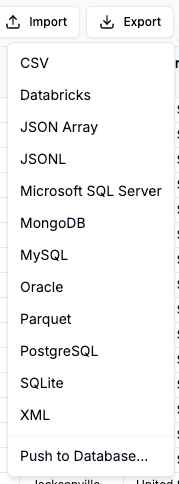
When you are ready to use the data, you can export the database to one of several formats.
Each download is in the form of a .zip file, and includes a readme file that contains a summary of the export.
The following formats are available to all users:
CSV - Produces a .csv file for each table.
JSON array - Produces a JSON array for each table.
JSONL - Produces a .jsonl file for each table.
MySQL - Produces a .sql file to create and populate the database.
PostgreSQL - Produces a .sql file to create and populate the database.
SQLLite - Produces a .db file that contains the database.
These formats require an Enterprise license:
Avro - Produces an .avro file for each table.
Databricks - Produces a .sql file to create and populate the database.
Delta Lake - Produces a folder structure that contains the data and metadata.
Iceberg - Produces a folder structure that contains the data and metadata.
Microsoft SQL Server - Produces a .sql file to create and populate the database.
MongoDB - Produces a .bson file for each table, and a load.sh file.
Oracle - Produces a .sql file to create and populate the database.
Parquet - Produces a .parquet file for each table.
XML - Produces a folder for each table. Within each table, produces an .xml file for each record.
Supported export targets
When you choose to export data to a specific format, you can either export the entire database or the currently selected table. Fabricate then starts the download.
You can also choose to push the data to a specific external database. You set up target databases for export. Each target database consists of:
A server connection.
The name of the database.
Finally, you can prompt the Data Agent to send exported data to external storage, such as Amazon S3, Azure Blob Storage, or Kafka. Before you can write to external storage, you must:
Add the storage location credentials to the workspace secrets, or configure an AWS role or Azure service principal that the Data Agent can use.
Selecting the export option
To export the full Data Agent database:
In the database heading, click Export.
In the Export menu, select the format to use.

Selecting whether to download the entire database
For options other than Push to database, you choose whether to download the entire database or the currently selected file.

When you select the export option, Fabricate starts the download.
Pushing data to a database
When you push to a database, you select or define an export target. Each export target consists of:
A server connection.
A database on that server.
Your external database must allow connections from the Fabricate IP addresses.
Selecting or creating the export target
To export the data to an external database, select Push to database.
On the Push to Database panel, if there are export targets available, then from the Target Database dropdown:
To use an existing export target, select the target.
To define a new export target, select create new target.

If there are no export targets for the database, then click Create New Connection.

Defining an export target
Selecting or creating the server connection for the export target
From the Server dropdown list, select the server connection option to use for the export target. You can add a new server connection, or select an existing workspace server connection.

The default option is Enter connection details. With this option, you provide the server connection information directly on the target configuration panel. When you use this option to configure the server connection, the server connection is only used for the export target. It is not added to the workspace list of server connections.
To create a new server connection that is added to the workspace list, select Add a new workspace server. Fabricate displays the New Server Connection panel to define the new workspace server connection.
For information about the configuration fields for server connections, go to Configuring available server connections for a workspace.
To use an existing workspace server connection, select it from the list.
Specifying the export target database
To specify the database to connect to.
For platforms other than Databricks, Google BigQuery, or Microsoft Fabric, in the Database field, provide the name of the target database to export to.
For Databricks:
In the Catalog field, provide the data catalog for the data.
In the Schema field, provide the schema for the data.
For Google BigQuery, in the Dataset field, provide the name of the dataset.
For Microsoft Fabric:
From the Lakehouse dropdown list, select the lakehouse that contains the data.
Optionally, in the Schema field, provide the schema to use. If the lakehouse contains a schema, then Fabricate automatically detects it and populates the field. If the lakehouse data does not contain a schema, then leave the field empty.
Providing the export target name
In the Connection Name field, provide a name to use for the export target.
Testing and saving the export target
To verify that Fabricate can connect to the target database, click Test Connection.
To create the export target, click Create Connection.
Fabricate displays the Push to Database panel with the new export target selected.
Starting the export
After you select the export target, to start the export, click Start.
Prompting the Data Agent to export data
You can also prompt the Data Agent to export the data. For example: Export the database to CSV files.
Customizing the export
With the Data Agent chat, you can customize the exported data. You might want to export only a subset of the database, or a specific table.
For example: Download to CSV files all of the records associated with the top 5 orders by value.
In addition to the format options in the Export menu, you can specify any type of text file, such as EDI, HL7, or YAML. You can also export data to .xslx files.
Exporting to Amazon S3
If you configured an Amazon S3 domain and secrets, then you can also tell the Agent to write the data to a folder in that S3 bucket.
For example: Write all of the records associated with the top 5 orders by value to CSV files in the output folder in the mybucket S3 bucket.
The Data Agent verifies that the domain is configured and that it is able to connect to the S3 bucket.
Exporting to Azure Blob Storage
If you configured an Azure Blob Storage domain and secrets, then you can also tell the Agent to write the data to a specific storage container and folder in that account.
For example: Write all of the records associated with the top 5 orders by value to CSV files in the output folder within the container fabricate1 in the myaccount Azure Blob Storage account.
The Data Agent verifies that the domain is configured and that it can connect to the storage folder.
Exporting to Kafka
If you configured a Kafka broker as an allowed domain, then you can also tell the Agent to write the data to Kafka.
For example: Export all of the records associated with the top 5 orders by value to mybroker on Kafka.
The Data Agent prompts you for the details that it needs to complete the export, including:
The Kafka broker.
Authentication.
How to organize the Kafka topics.
Which tables to export.
What to use as the message key.
Last updated
Was this helpful?