# Configuring added and excluded values for built-in entity types

{% hint style="info" %}
**Required dataset permission:** Edit dataset settings
{% endhint %}

In a dataset, for each built-in entity type, you can configure additional values to detect, and values to exclude. You cannot define added and excluded values for custom entity types.

You might add values that Textual does not detect because, for example, they are specific to your organization or industry.

You might exclude a value because:

* Textual labeled the value incorrectly.
* You do not want to redact a specific value. For example, you might want to preserve known test values.

Note that you can also [add manual redactions from the file preview](https://docs.tonic.ai/textual/datasets-preview-output/dataset-file-preview/file-preview-redacted-file#file-preview-manual-redaction).

## Displaying the Configure Entity Detection panel

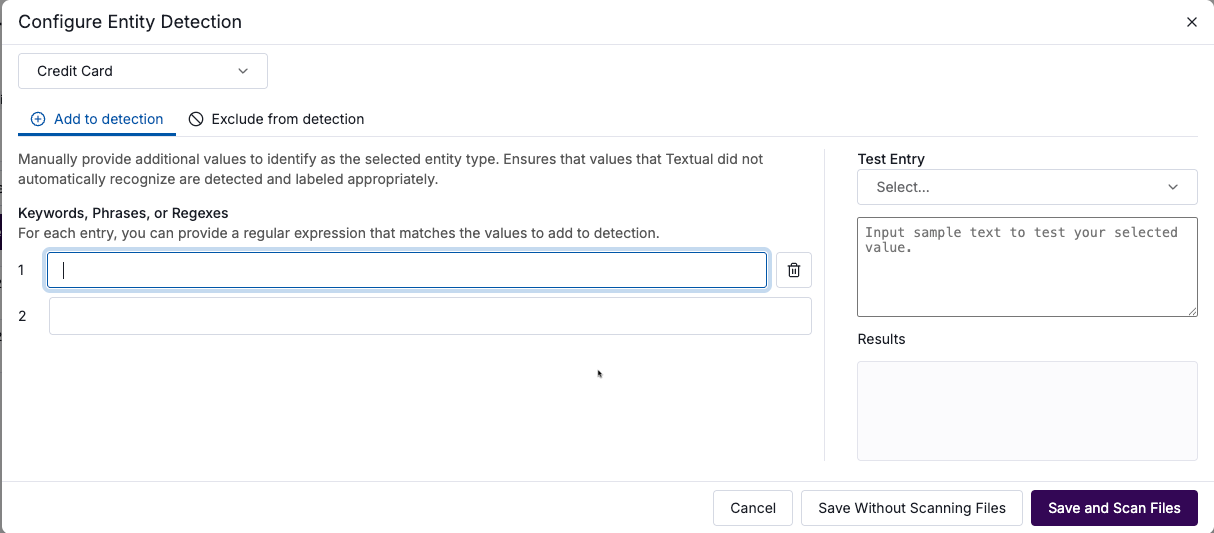
From the **Configure Entity Detection** panel, you configure both added and excluded values for entity types.

To display the panel, click the settings icon for the entity type.

The panel contains an **Add to detection** tab for added values, and an **Exclude from detection** tab for excluded values.

<figure><img src="https://3072847115-files.gitbook.io/~/files/v0/b/gitbook-x-prod.appspot.com/o/spaces%2FvOPn7KQptPWmS5iKg5P0%2Fuploads%2F7P8c4wI2X8VYoh8yOmfL%2FCustomEntityDetectionEmpty.png?alt=media&#x26;token=c59cc7ca-ff92-41d3-982b-52a5087d8aca" alt=""><figcaption><p>Configure Entity Detection panel to configure added and excluded entity values</p></figcaption></figure>

## Selecting the entity type to add or exclude values for

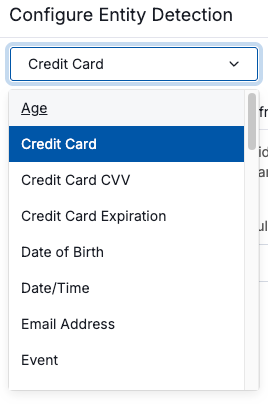
The entity type dropdown list at the top of the **Configure Entity Detection** panel indicates the entity type to configure added and excluded values for.

The initial selected entity type is the entity type for which you clicked the icon. To configure values for a different entity type, select the entity type from the list.

<figure><img src="https://3072847115-files.gitbook.io/~/files/v0/b/gitbook-x-prod.appspot.com/o/spaces%2FvOPn7KQptPWmS5iKg5P0%2Fuploads%2F1JxXV9tG6Sz9sIl7iKTv%2FCustomEntityDetectionTypeDropdown.png?alt=media&#x26;token=fd9e6ffe-0385-4106-8954-bfc524fdcdc2" alt=""><figcaption><p>Entity type dropdown for Custom Entity Detection</p></figcaption></figure>

## Configuring added values <a href="#configure-included-values" id="configure-included-values"></a>

On the **Add to detection** tab, you configure the added values for the selected entity type.

Each value can be a specific word or phrase, or a regular expression to identify the values to add. Regular expressions must be C# compatible.

### Configuring a new added value <a href="#add-included-value" id="add-included-value"></a>

To add an added value:

1. Click the empty entry.
2. Type the value into the field.

<figure><img src="https://3072847115-files.gitbook.io/~/files/v0/b/gitbook-x-prod.appspot.com/o/spaces%2FvOPn7KQptPWmS5iKg5P0%2Fuploads%2FoICUeNaY6A34fgywOeTV%2FCustomEntityDetectionIncludedValue.png?alt=media&#x26;token=c3e88608-bd0d-4489-b357-84dc1f280264" alt=""><figcaption><p>Adding an added value for an entity type</p></figcaption></figure>

### Editing an added value <a href="#edit-included-value" id="edit-included-value"></a>

To edit an added value:

1. Click the value.
2. Update the value text.

### Testing an added value <a href="#test-included-value" id="test-included-value"></a>

For each added value, you can test whether Textual correctly detects it.

To test a value:

1. From the **Test Entry** dropdown list, select the number for the value to test.
2. In the text field, type or paste content that contains a value or values that Textual should detect.

The **Results** field displays the text and highlights matching values.

<figure><img src="https://3072847115-files.gitbook.io/~/files/v0/b/gitbook-x-prod.appspot.com/o/spaces%2FvOPn7KQptPWmS5iKg5P0%2Fuploads%2F3IEd13g1JUqX6568K8eR%2FCustomEntityDetectionTestIncludedValue.png?alt=media&#x26;token=bb3c171e-e899-4404-8280-820f5a92d8a5" alt=""><figcaption><p>Testing an added value</p></figcaption></figure>

### Removing an added value <a href="#remove-included-value" id="remove-included-value"></a>

To remove an added value, click its delete icon.

## Configuring excluded values <a href="#configure-blocked-values" id="configure-blocked-values"></a>

On the **Exclude from detection** tab, you configure the excluded values for the selected entity type.

Each value can be either a specific word or phrase to exclude, or a regular expression to identify the values to exclude. Regular expressions must be C# compatible, and can include context information for the values to exclude.

Specific words and phrases can also provide a context within which to ignore a value. For example, in the phrase "one moment, please", you probably do not want the word "one" to be detected as a numeric value. If you specify "one moment, please" as an excluded value for the numeric entity type, then "one" is not identified as a number when it is seen in that context.

### Adding an excluded value <a href="#add-blocked-value" id="add-blocked-value"></a>

To add an excluded value:

1. Click the empty entry.
2. Type the value into the field.

<figure><img src="https://3072847115-files.gitbook.io/~/files/v0/b/gitbook-x-prod.appspot.com/o/spaces%2FvOPn7KQptPWmS5iKg5P0%2Fuploads%2F5Q5Y8qfOrMsQpkXrhZid%2FCustomEntityDetectionBlockedValue.png?alt=media&#x26;token=56a1c298-542b-4f70-8ce6-6f9f798ecd44" alt=""><figcaption><p>Adding an excluded value for an entity type</p></figcaption></figure>

### Editing an excluded value <a href="#edit-blocked-value" id="edit-blocked-value"></a>

To edit an excluded value:

1. Click the value.
2. Update the value text.

### Testing an excluded value <a href="#test-excluded-value" id="test-excluded-value"></a>

For each excluded value, you can test whether Textual correctly detects it.

To test the value that you are currently editing:

1. From the **Test Entry** dropdown list, select the number for the value to test.
2. In the text field, type or paste content that contains a value or values to exclude.

The **Results** field displays the text and highlights matching values.

<figure><img src="https://3072847115-files.gitbook.io/~/files/v0/b/gitbook-x-prod.appspot.com/o/spaces%2FvOPn7KQptPWmS5iKg5P0%2Fuploads%2FaUBQDHWPq144CsHIDYyX%2FCustomEntityDetectionTestExcludedValue.png?alt=media&#x26;token=866d2e0f-e3bd-47f5-bbab-4671383ee058" alt=""><figcaption><p>Testing an excluded value</p></figcaption></figure>

### Removing an excluded value <a href="#remove-blocked-value" id="remove-blocked-value"></a>

To remove an excluded value, click its delete icon.

## Saving the updated added and excluded values <a href="#custom-entity-detection-save" id="custom-entity-detection-save"></a>

New added values are not reflected in the entity types list until Textual runs a new scan.

When you save the changes, you can choose whether to immediately run a new scan on the dataset files.&#x20;

<figure><img src="https://3072847115-files.gitbook.io/~/files/v0/b/gitbook-x-prod.appspot.com/o/spaces%2FvOPn7KQptPWmS5iKg5P0%2Fuploads%2FshQECIaAj9h34z7gwD9Q%2FCustomEntityDetectionSaveOptions.png?alt=media&#x26;token=6313ad4b-6858-4294-b094-576087391888" alt=""><figcaption><p>Save options for Custom Entity Detection</p></figcaption></figure>

To save the changes and also start a scan, click **Save and Scan Files**.

To save the changes, but not run a scan, click **Save Without Scanning Files**. When you do not run the scan, then on the dataset details page, Textual displays a prompt to run a scan.

<figure><img src="https://3072847115-files.gitbook.io/~/files/v0/b/gitbook-x-prod.appspot.com/o/spaces%2FvOPn7KQptPWmS5iKg5P0%2Fuploads%2Fn0uPQqY8P9EhE4uTgjHD%2FDatasetDetails_FilesScanRequired.png?alt=media&#x26;token=418918ba-807d-4179-9ae6-fc735c821a1c" alt=""><figcaption><p>Dataset files list when a rescan is required</p></figcaption></figure>