Redacted text files

Format of a text file preview

Text files include .txt and .json files.

For a text file preview:

  • On the left, the preview displays the original data. The detected entity values are highlighted.

  • On the right, the preview displays the data with replacement values that are based on the dataset configuration for the detected entity types.

File preview with the original and redacted and synthesized text data
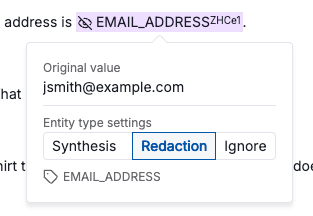
Selecting entity type handling options

From a text file preview, to select the entity type handling option for an entity type:

  1. In the results panel, click a detected value.

  2. On the details panel, click the entity type handling option. Textual applies the same option to all entity values of that type.

Selecting an entity type handling option
From the preview, you can only select the entity type handling option. For the Synthesis option, you cannot configure synthesis options for an entity type. You must configure those options from the dataset details page. For more information, go to Configuring entity type synthesis options.

Adding and removing manual redactions

From a text file preview, you can add manual redactions. When you add a manual redaction, you select the entity type to assign to it.

Adding a manual redaction

To add a manual redaction to a text file:

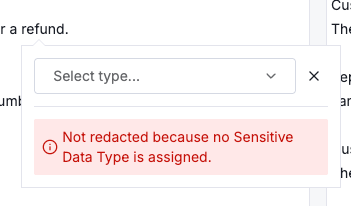
  1. In the source text panel on the left, select the text to redact.

  2. On the redaction panel, from the dropdown list, select the entity type for the redaction.

Redaction creation panel for a text file redaction
Removing a manual redaction

To remove a manual redaction from a text file:

  1. Either:

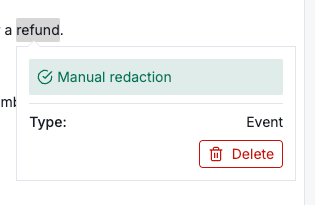
    • In the source panel, select the redacted text.

    • In the output panel, click the redaction.

  2. Click Delete.

Redaction details for an existing text file redaction

Last updated

Was this helpful?